Connect your WhatsApp, step by step
Follow these steps to connect your business’s WhatsApp number to Birdie Connect on your own. Each picture shows exactly where to press: look for the numbered purple frame.
Before you start
- Your Birdie Connect sign-in (from your welcome email).
- A Facebook account that manages your business on Facebook, or that can create one for it.
- The phone number you want customers to see. It must be able to receive an SMS or a call, and it must not be in use in the WhatsApp app. If it is, delete WhatsApp from that phone first.
- Use a computer, in a normal Chrome, Safari or Edge window (not a private window).
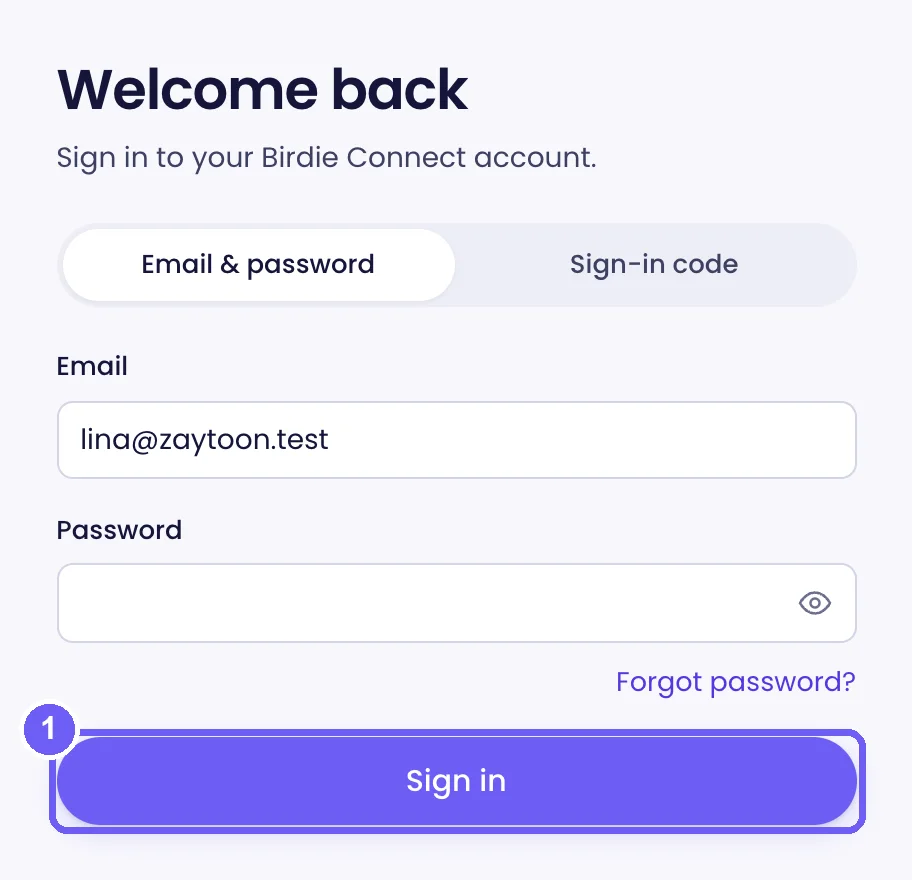
1 Sign in
Open connect.birdie.ps/login and sign in with your email and password. First time? Press Forgot password? to set your password, or sign in with a code sent to your WhatsApp.
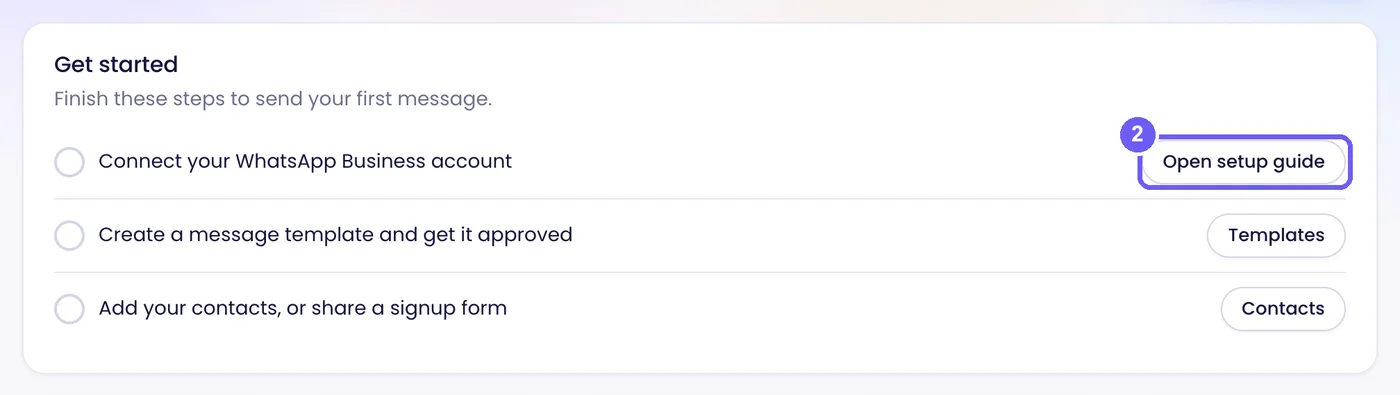
2 Open the setup guide
On your dashboard, press Open setup guide. You can also find it later in the account menu at the bottom left.
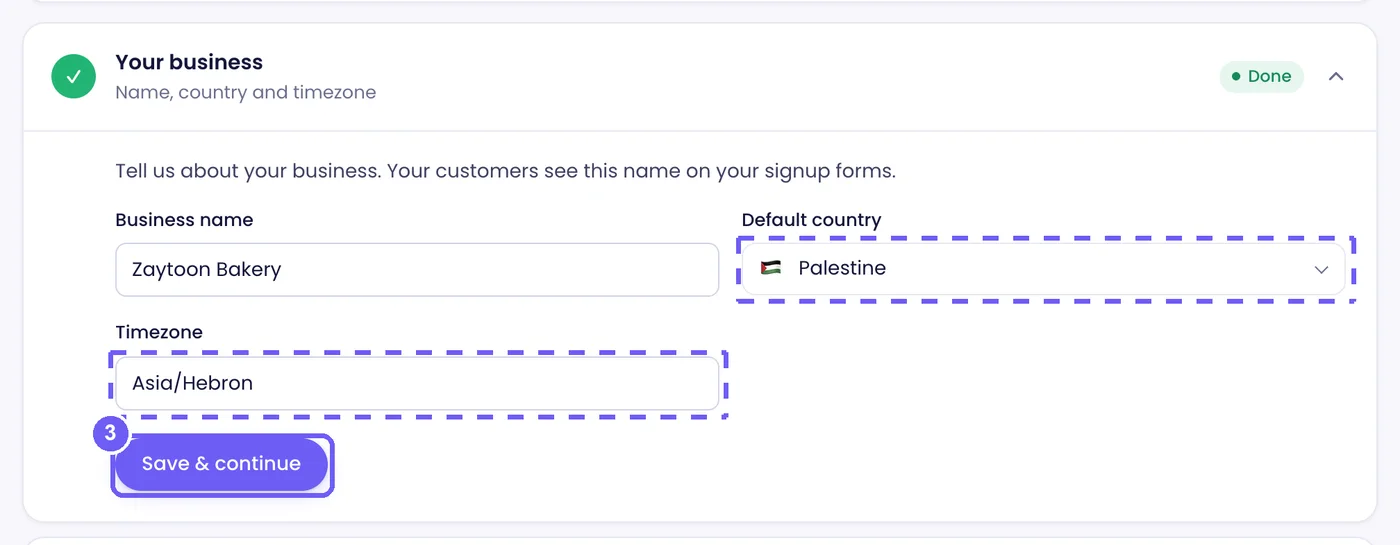
3 Your business
Check your business name and choose your country: the timezone fills itself in. Press Save & continue.
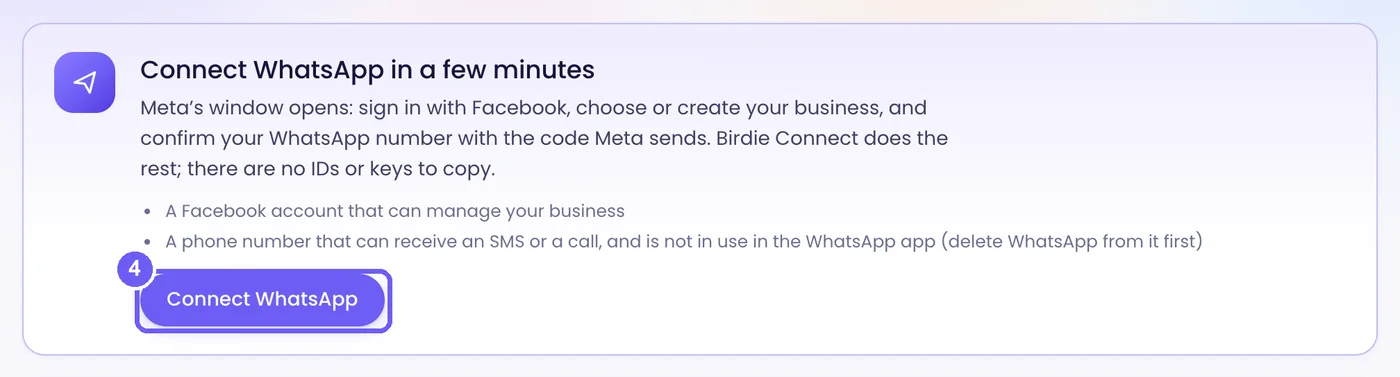
4 Press “Connect WhatsApp”
Meta’s window opens on top of the page. If nothing opens, your browser blocked it: allow pop-ups for connect.birdie.ps (the icon at the end of the address bar) and press the button again.
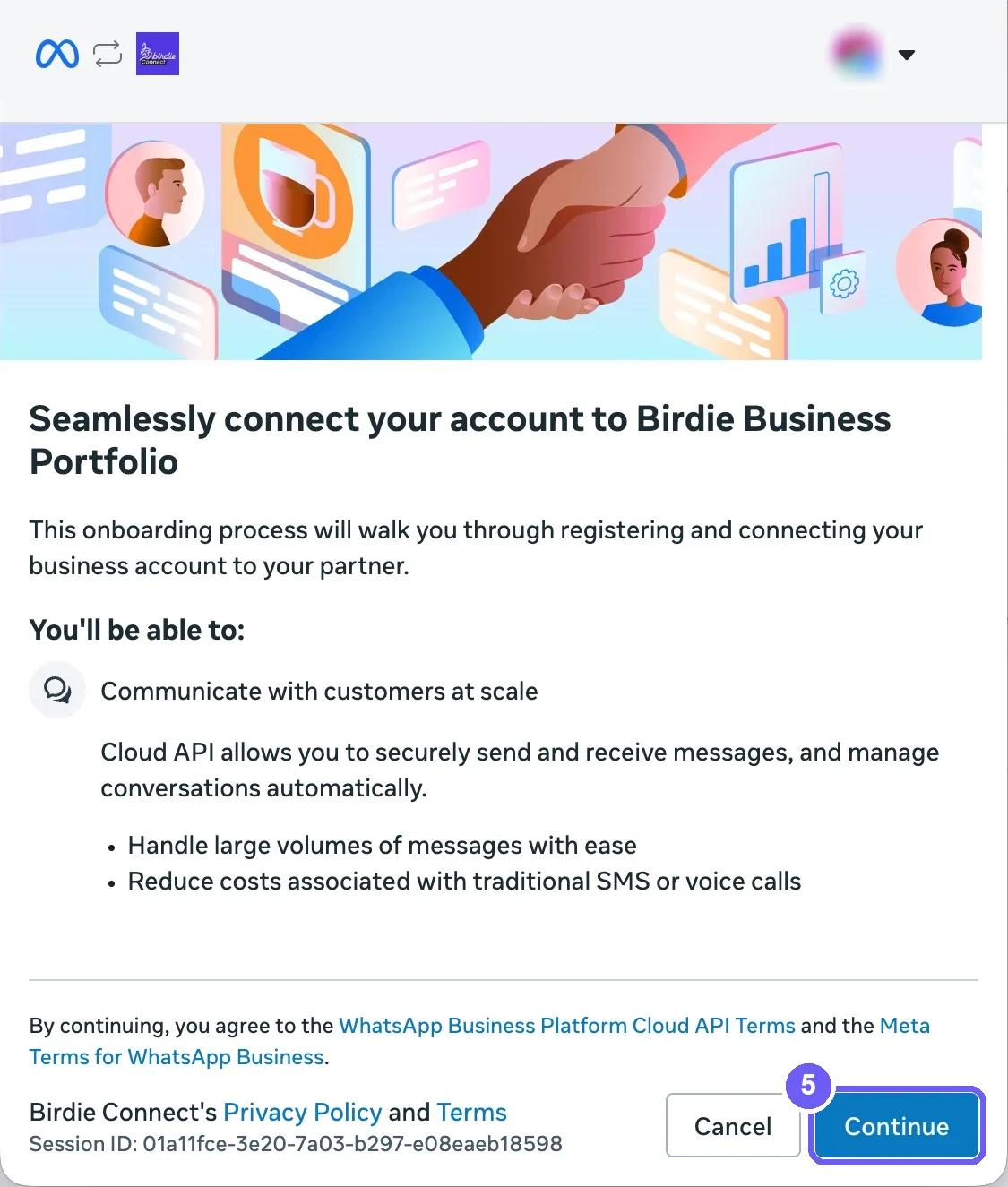
5 Sign in to Facebook and continue
Sign in with the Facebook account that manages your business. Meta explains that you are connecting your account to Birdie, our company. Press Continue.
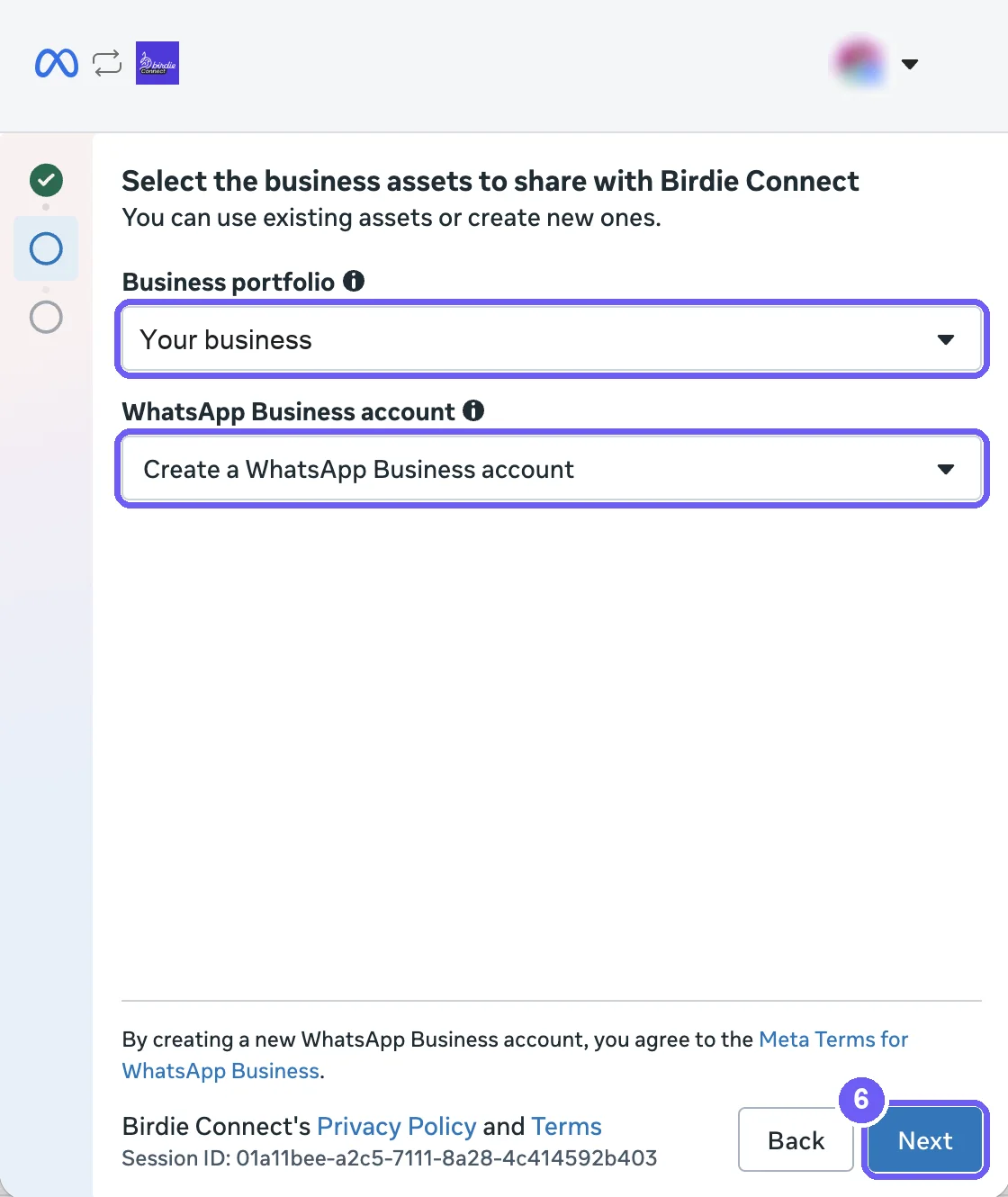
6 Choose your business
Under Business portfolio, choose your business (or create it if you don’t have one yet). Under WhatsApp Business account, choose Create a WhatsApp Business account, unless you already have one for this number. Press Next.
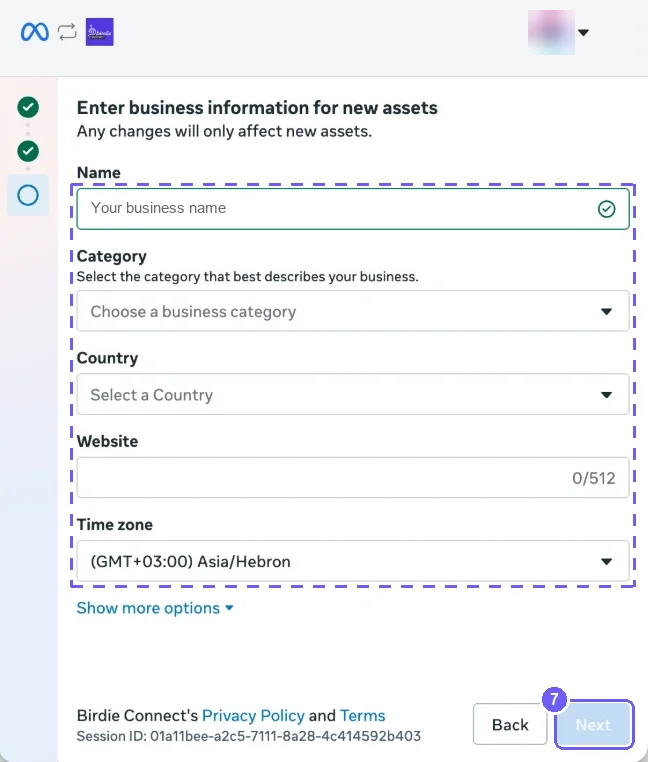
7 Your business details
Fill in your business name, category, country, website (your website or your Facebook or Instagram page) and time zone. Press Next.
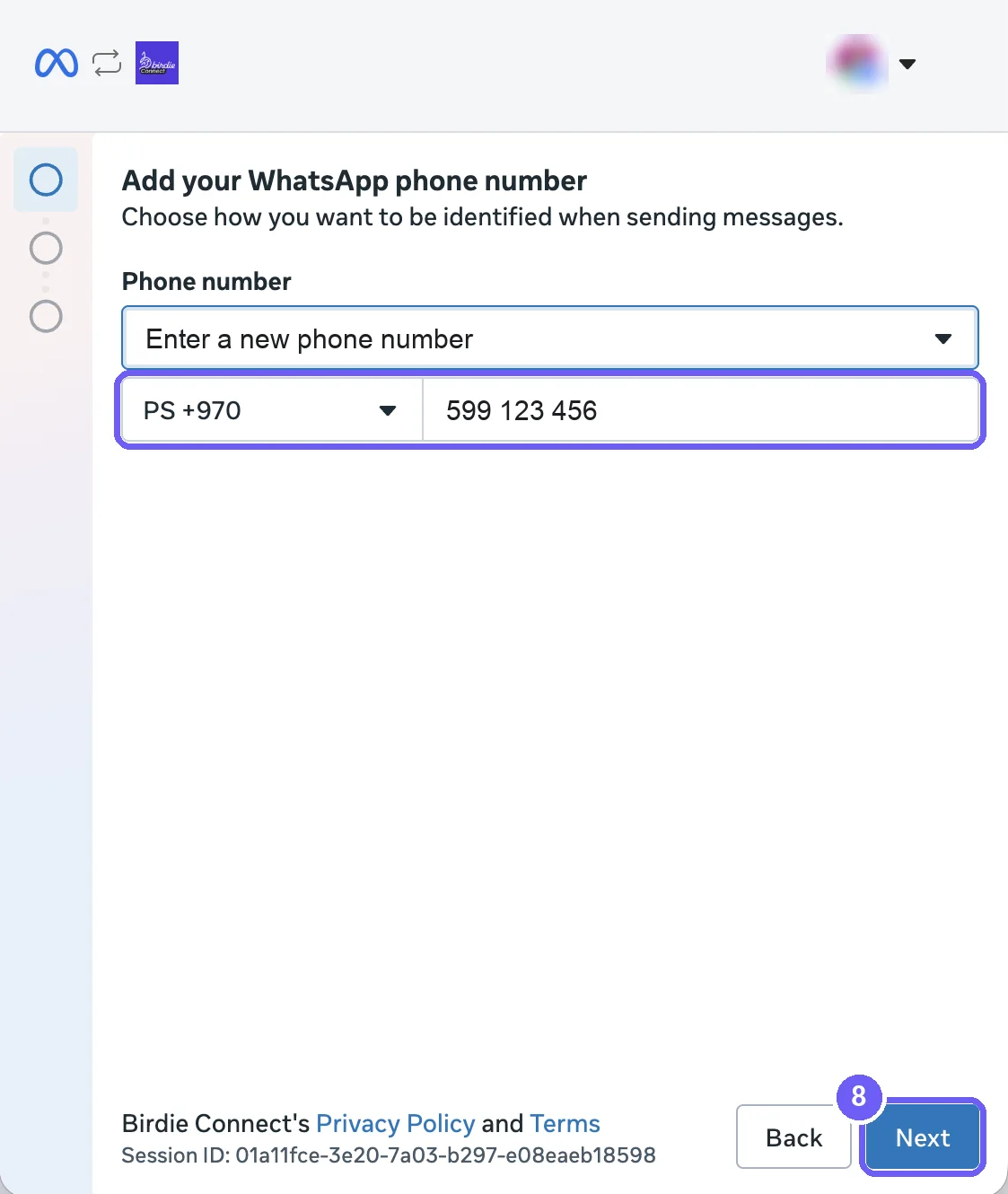
8 Your WhatsApp number
Choose Enter a new phone number, pick your country and type the number. Meta sends a code by SMS or a call: type it in. Then press Next.
The display name (the name customers see) must match your business. Meta checks it, usually within a day.
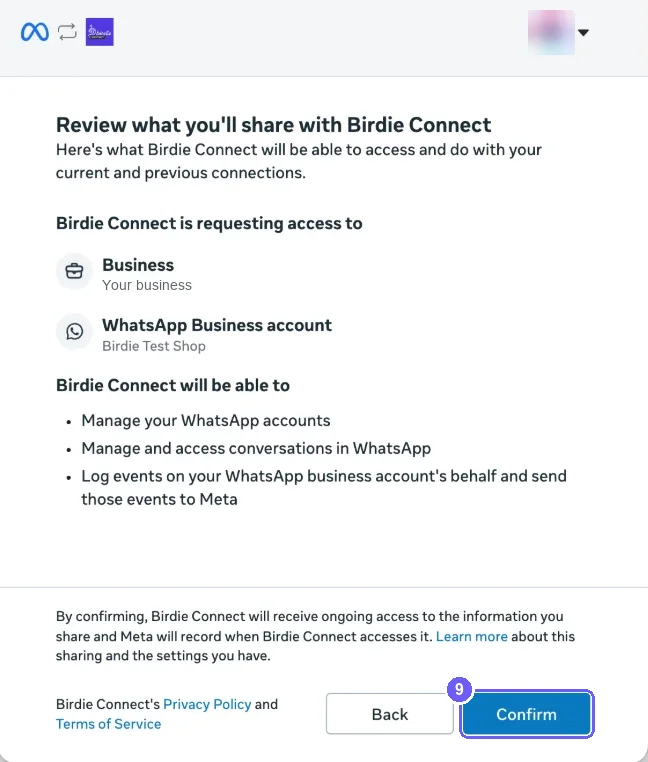
9 Review and confirm
Meta shows what Birdie Connect may do: manage your WhatsApp account and its messages. Press Confirm.
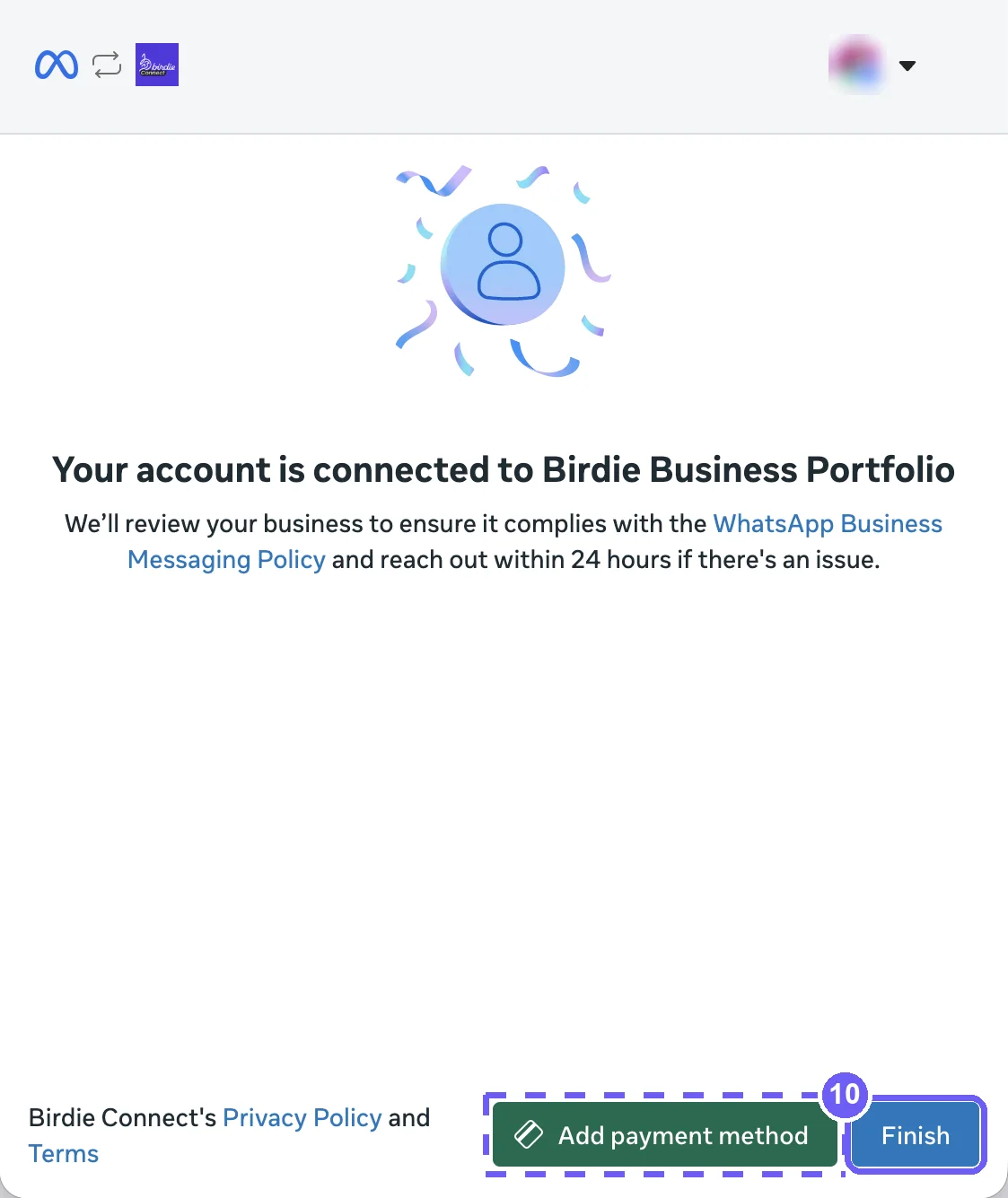
10 Finish
Press Finish. Meta charges WhatsApp message fees directly to your account: you can press Add payment method now or later, but you need it before your first campaign.
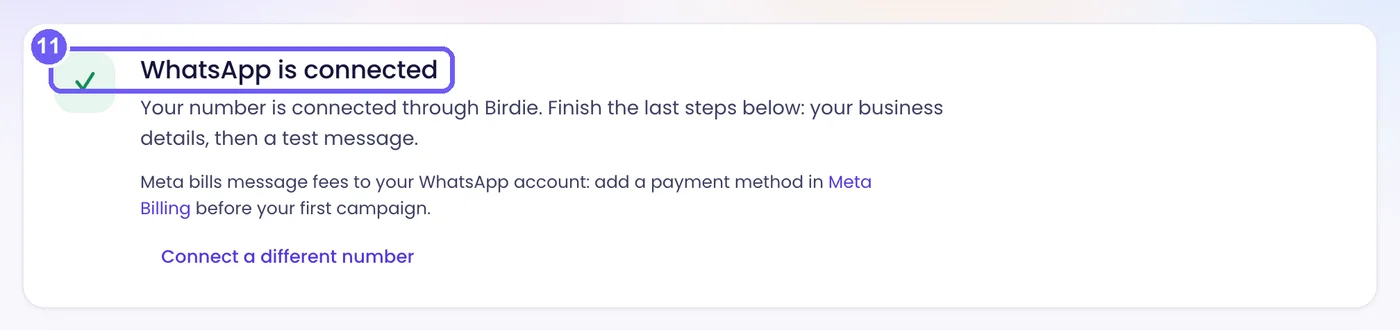
11 WhatsApp is connected
Meta’s window closes and Birdie Connect shows WhatsApp is connected. Birdie Connect has already done the rest for you.
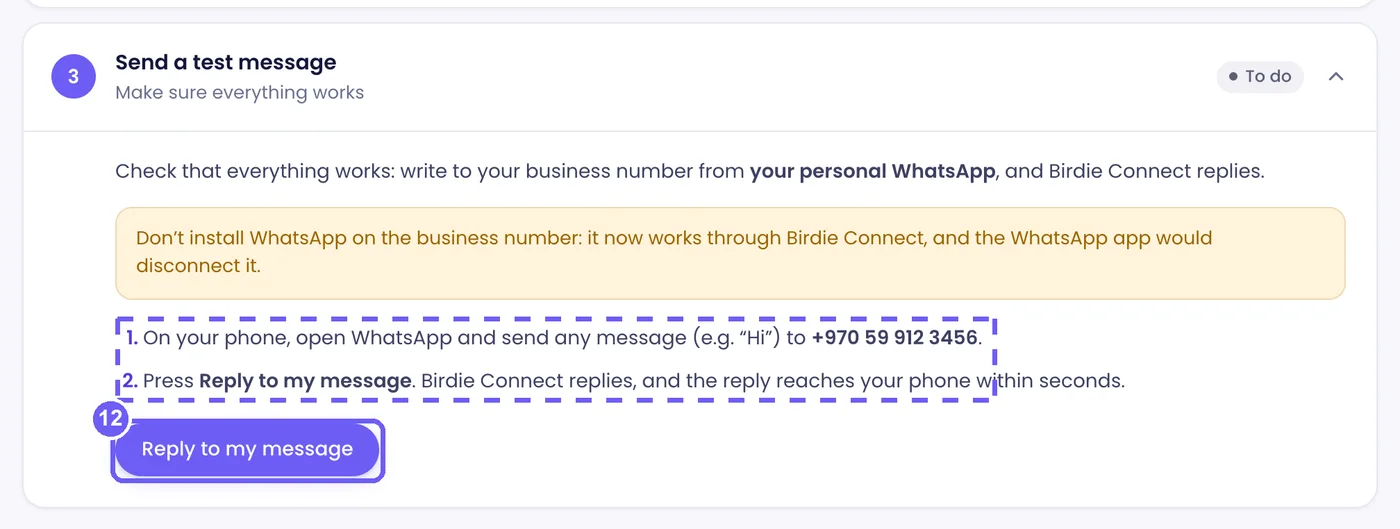
12 Send a test
From your personal WhatsApp, send any message (for example “Hi”) to your business number, the one shown on the page. Then press Reply to my message.
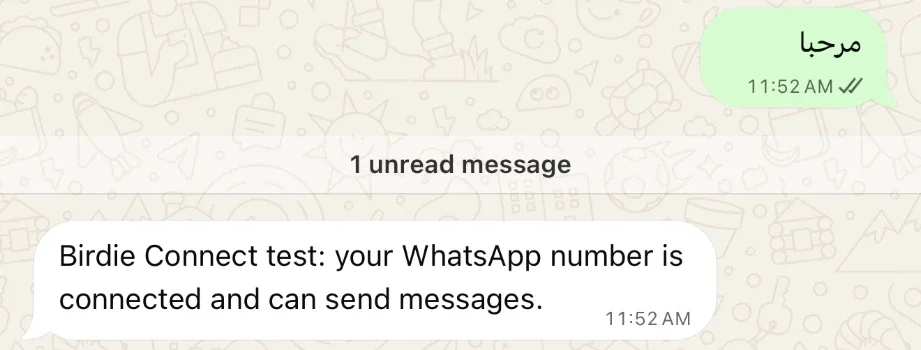
13 The reply reaches your phone
Within seconds the reply arrives on your phone. You’re done: create your first message template in Templates and add your contacts.
Important
- Don’t install WhatsApp on the business number after connecting it: it now works through Birdie Connect, and the WhatsApp app would disconnect it.
- Use a normal browser window. In a private window Facebook’s sign-in may not load.
- “Facebook’s sign-in could not load”: switch off ad blockers for connect.birdie.ps and try again.
- Stuck? Contact us and we’ll help.